
Paraphrasing a famous phrase, I’ll start with a teaching: Computer users are divided into those who don’t do backups yet, and those who already do.
I’ll add on my own that even if it seems to you that all this is unnecessary and there’s nothing so valuable on your computer, on the day (and it will come sooner or later) when you lose all your data your opinion may change dramatically. And so that such a day doesn’t come, all reasonable users of normal computers must make backups. Moreover, they should do them regularly and automatically.
Modern OSes also try to convey this simple idea to you and are equipped with such means “out of the box”. I’m not sure what’s now with backups in the-most-popular-system, but in my world of Macs the addition of TM (Time Machine) in its time greatly popularized this idea and brought the implementation of creating and restoring backups to an excellent state of “everything in one click”.
However, such a backup has a significant drawback — it’s located geographically close to your computer. As a rule it’s just an external disk connected via USB. Undoubtedly, such a variant is perfectly suited for recovery after failures, however in case of something bad in the offline world you have a chance to lose simultaneously — both the main computer and its backup copy. There are many variants of this “something bad”, for example fire/flood, tornado, nuclear explosion or alien invasion. Well, and besides shouldn’t dismiss simpler options, like robbery/theft, when an intruder can swipe all your tech including the disk with backups.
That is, local backups are good, correct, but not enough. Every user concerned with data safety simply must keep copies somewhere outside the home. And since we’re concerned not only with safety but also privacy — these remote backups should be accessible only to you and encrypted in one way or another. There are several solutions to this problem, here are some of them:
-
Creating weekly/monthly copies of the whole disk manually, and delivering these disks to a safe place for storage. This is exactly how one of my colleagues does it, tirelessly taking disks to his mother-in-law. This method has masses of problems — first, it’s a manual process, second you need to see your mother-in-law often, and lastly you need many disks in rotation to have the possibility of flexible recovery. Besides, the relevance of such full backups won’t be too good if you don’t conduct this whole procedure every day.
-
Using special network (cloud) services for maintaining backups. One of the most famous in this category is CrashPlan. For $4/month they sell you a service with unlimited remote backup volume and attach to this a quite nice program that can do all this automatically. Another example from the same category is Backblaze which for $5/month provides the same unlimited size and an even more humane program. In both cases privacy of data and encryption is promised. From my own experience I came to the conclusion that both these services are not suitable for creating really large backups. They solve the “unlimited cloud disk” problem by limiting speed and the attempt to upload something large there turns into complete indecency. In my case I tried to backup a 300GB folder and after 2 weeks of waiting and 10% uploaded simply gave up on this matter. It seems that they reduce speed during upload to limit this theoretical “unlimited” to something practical. Or it’s not evil intent, but simply their channels are heavily overloaded. Don’t know, but in the end both turned out unacceptable for me. Besides, there’s a certain risk that their business model will turn out untenable and they’ll close shop one fine day, and we’ll lose all our backups.
-
Connecting your own backup disk to the internet outside the home. Such options can be bought ready-made, for example WD My Cloud or assemble yourself from a disk and a computer lying around. Of course, you need a place where all this will stand and connect to the internet. I, for a long time, used such a remote network disk, putting in the office a Raspberry Pi with an external disk and used BitTorrent Sync for automatic synchronization. All this worked with great difficulty, but didn’t cause delight. Internet speed in my office is not the highest, especially for upload. And the reliability of this bundle was also not great — either the power would go out, or a colleague would accidentally pull out a wire, or the RPi would glitch.
-
Using cloud storage from known players in this market — Amazon, Google and DropBox. This is exactly the direction worth looking at more carefully, which we’ll now do.
The sharp drop in prices for cloud “disks” made attractive their use for such backups. For $10/month both Google and DropBox sell a whole terabyte of space. At Amazon theoretically the same terabyte in Glacier will also cost $10/month, but there everything is more complicated both with understanding the real price and with recovery, so I wouldn’t recommend.
Having decided on the choice (I chose Google) need to select a program to automate the process. For me there wasn’t much choice here, since from the beginning of the year I discovered for myself the quite worthy Arq which allows creating backups to remote places through different paths (FTP, SFTP, Google, Amazon and others), fully automates the procedure and protects data with encryption before it leaves your computer.
Arq itself is somewhat … ascetic and its appearance doesn’t cause delight. However, adding new network backups and their recovery is quite simple and works exactly as in this video.
As for speed, uploading data to Google Drive through Arq shows quite adequate numbers. I managed to upload 300GB in about 3 days and didn’t notice any speed reduction in the process. After the initial load Arq continues to backup data, uploading only new files. I have this set to daily mode, starts at 3 AM and by morning everything is ready. In practice, this solution is just from the “set-and-forget” series. So far I haven’t had practical need to restore this data, but of course I checked how it works. And yes, it works.
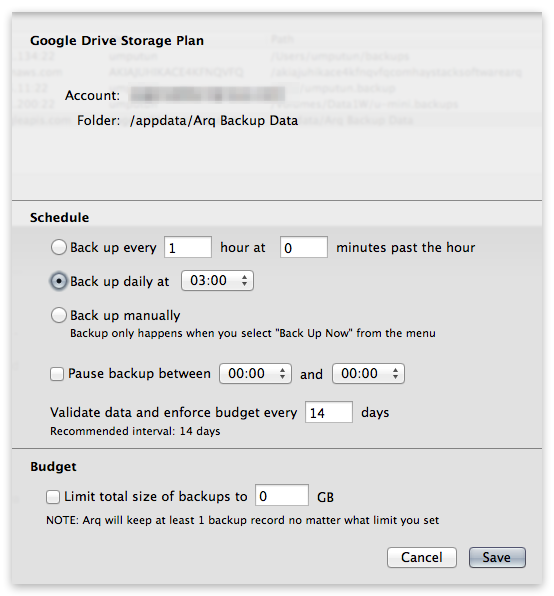
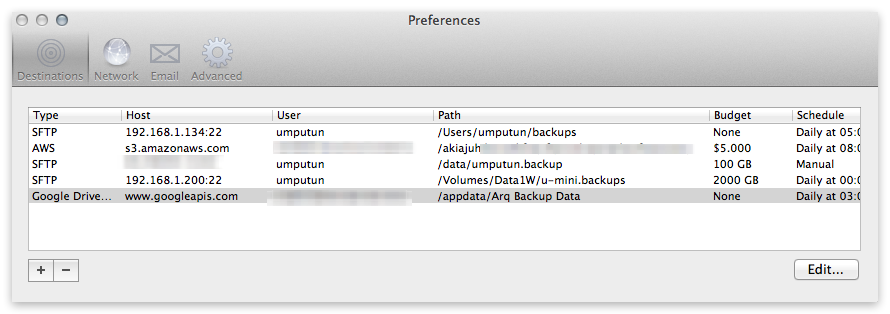
Arq itself costs $40, which is of course pricey, but I paid and advise you. The program works reliably, predictably and doesn’t interfere with anything. Even in the process of creating copies or recovery, its impact on computer performance is practically unnoticeable. There aren’t many settings there, but they allow the main thing — choose the backup creation mode, choose the maximum size of occupied space in the cloud and add any folders, both local and network in the set for backup. Besides, you can use several different clouds and, for example, store part of data in Google Drive and another part in Amazon S3. Unfortunately, there’s still no proper way to add DropBox as a destination, but I conveyed this wish to the program author and there’s hope that soon such a possibility will appear.
And I’ll finish on a teaching note, purely for symmetry — make backups, at least some. Can’t do remote — do local. Can’t do automatic — do manual. Any, the most shabby backup is much better than its complete absence.
If you have favorite ways of creating backups, both local and remote — share in comments, will be useful to everyone.
This post was translated from the Russian original with AI assistance and reviewed by a human.