
After I got a taste of Dropbox and especially after we all started to realize that Dropbox is far from ideal and keeping personal data there is risky, various thoughts arose, including how to set up my own personal Dropbox replacement/supplement. From time to time I tried different systems of varying degrees of readiness and user-friendliness, and kept confirming that all of it was typically wrong.
Either the thing was impossibly slow, or buggy, or both problems simultaneously. After the release of the new, “heavily reworked and improved” 5th version of ownCloud, which was no lighter than version 4 and even less stable, I was about to sit down and write such a thing myself when I stumbled upon Seafile, or more precisely, kind people pointed me to it in the comments on radio-t.
Another pet idea was to run my own Dropbox replacement on one of my RPis. The way ownCloud performed on RPi deserved every condemnation and tearing the developers’ hands out of the places where those hands mistakenly grew. Though there’s not much to be surprised about here — even on a more real computer, ownCloud didn’t shine (to put it mildly) with stability and speed.
However, let’s return to our hero and give the conclusion right away: Seafile is good, very good, somewhere close to excellent. There are server versions for Linux in general and for RPi in particular. After installing the server version on RPi and going through a series of simple and well-documented installation and configuration steps, I got a fully working storage, access, and sync server in a couple of minutes. The process is really very simple and accessible to anyone who isn’t scared by the Linux command line.
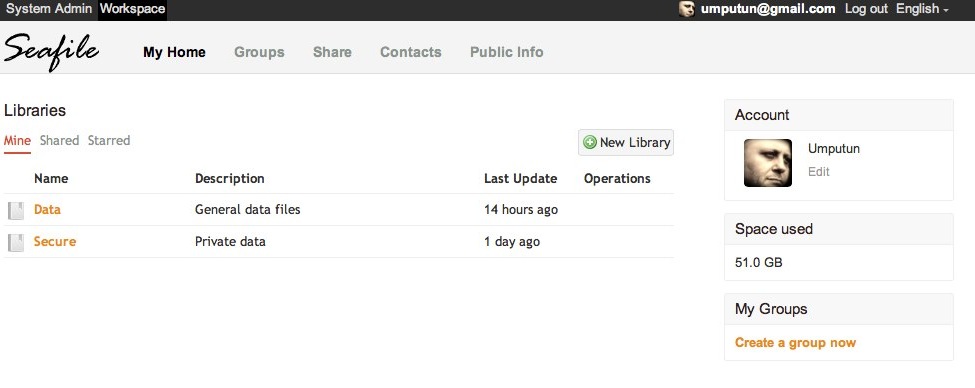 By the way, to try Seafile in action you don’t need to install a server at all. At cloud.seafile.com they give access (5GB max) to such a server and it’s exactly the system you’d get when installing it yourself. Of course, for a personal server there are no 5GB limitations and you can store as much as fits on the server’s disk.
In principle, after installing the server you can already use it quite well. The only way to work from a computer will be through the web interface. It’s quite a workable approach, especially if you need to quickly view or upload something. By the way, although the interface is very laconic, it’s quite functional. Everything you expect will work here. Files of formats that can be displayed will show a preview, uploading/downloading is available for individual files, folders, and even entire libraries. Libraries in Seafile are such sections. Translating to Dropbox language — each library is its own separate Dropbox that doesn’t need an additional account.
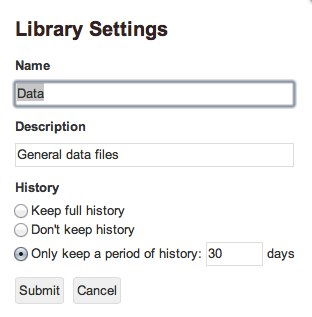 Seafile supports history/versioning. Unlike Dropbox, the degree and depth of this history can be controlled at the library level and allows you to set what’s convenient for you. In practice, this is quite a useful capability and allows fairly flexible management of the size of such historical versions depending on your situation, server disk size, and degree of paranoia. By the way, if desired, you can also limit the maximum size of what a user will occupy on disk. As far as I understand, this works at the user level, not at the individual library level.
And yes, this thing supports multiple users, i.e., something like Dropbox for workgroups. Seafile has the ability to manage users, group them, share files in groups, and even exchange some messages. I can’t say much about this, since in my case there’s only one user and I don’t need any company here yet. However, judging by discussions in their forum, such use is extremely popular in small and even large groups and organizations.
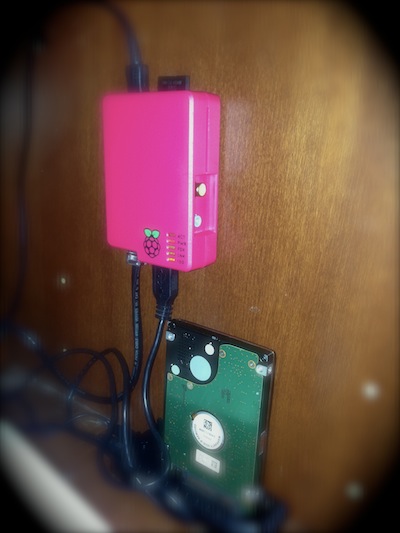 Now about the client side. It exists, and there’s a lot of variety. There are clients for everything you want and even for mobile platforms. The Mac client I use provides synchronization of those libraries you want to have locally. The client is simple and very lightweight. Unlike Dropbox and many others, its work is hard to notice by sudden fan howling. Even in the most active work mode, the Seafile client is very modest in using system resources. By the way, regarding server resources, even on the very modest RPi, Seafile behaves superbly. Even at peaks, CPU load doesn’t jump above 60-70% and it doesn’t eat much memory (I haven’t noticed more than 5% on a 512M RPi).
Client synchronization works, unlike other Dropbox replacements, i.e., it works always, reliably, and quickly. I currently have about 50GB of data stored and synchronized through Seafile and I haven’t observed any problems. It works on 3 Macs and works just great. Speed is around 5MB/s and I suspect the bottleneck here is the specifics of ethernet implementation through USB on RPi, the same USB where the external disk sits.
The client interface is somewhat strange. It combines a funny icon in the menu with control through a browser.
 in one click and the link leads to a page with preview and Download, but if necessary this link is easy to extract.
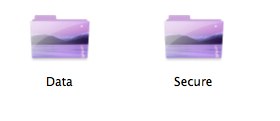 After installation, the client tries to integrate with Finder, but it doesn’t succeed right away. On all 3 of my Macs I had to restart the client for Finder to start showing libraries and hiding service information. There’s no deep integration with Finder here (yet?) only the most basic.
A few words about the synchronization process. I didn’t study how it’s done there, but there’s an impression that synchronization happens sequentially. I.e., if you added files, they’ll be uploaded one after another. At the same time, if new files appeared on the server, the client won’t start taking them until it finishes the current upload. It’s hard to say how much this is a disadvantage, but probably when working with a distant server one might want parallel and non-blocking operation. Personally this doesn’t matter to me, on a local network it’s practically unnoticeable. Another specificity is that the synchronization result is delivered not in parts but in one shot. In Dropbox, when several new or updated files appear, they’ll appear on the client one after another. Here it’s different — first Seafile delivers everything and only then shows it. In practice this is a bit unusual (nothing, nothing and suddenly everything), but it doesn’t cause any discomfort for me.
Summing up — this is a good, proper program and it’s closest to what I need for organizing local “cloud” storage. For the last 3 days I’ve been running Seafile hard and I’m about 80% convinced that Seafile will become my main home cloud system.
This post was translated from the Russian original with AI assistance and reviewed by a human.